
Before you begin
- A white artboard display is not necessarily a white object.
- Expanded traces may contain separate near-white fills.
- Intentional white highlights and negative-space shapes must be preserved.
- Background-only cleanup is safer than removing every white fill when content varies.
Inspect the vector structure
Manual processing suits a small set or a rule that has not been tested yet.
- Place a colored rectangle behind the artwork temporarily.
- Select or inspect white-filled paths.
- Identify large background shapes versus small debris and intended details.
- Remove a test set and compare the result before saving a copy.
Quality checks before delivery
Open representative outputs and review the actual vector or raster file at the size and in the application that matters.
- Intentional white details
- Light gray or pale-colored shapes
- Edge halos
- Editable grouping after cleanup
Troubleshooting
Keep the source unchanged while you diagnose a failed file. Other files in the batch can continue.
- If white artwork disappears, restore from the source and use a less aggressive policy.
- If a background remains, inspect whether it is clipped, rasterized, or not near-white.
- Do not use a single cleanup rule for folders with mixed background conditions.
Workflow
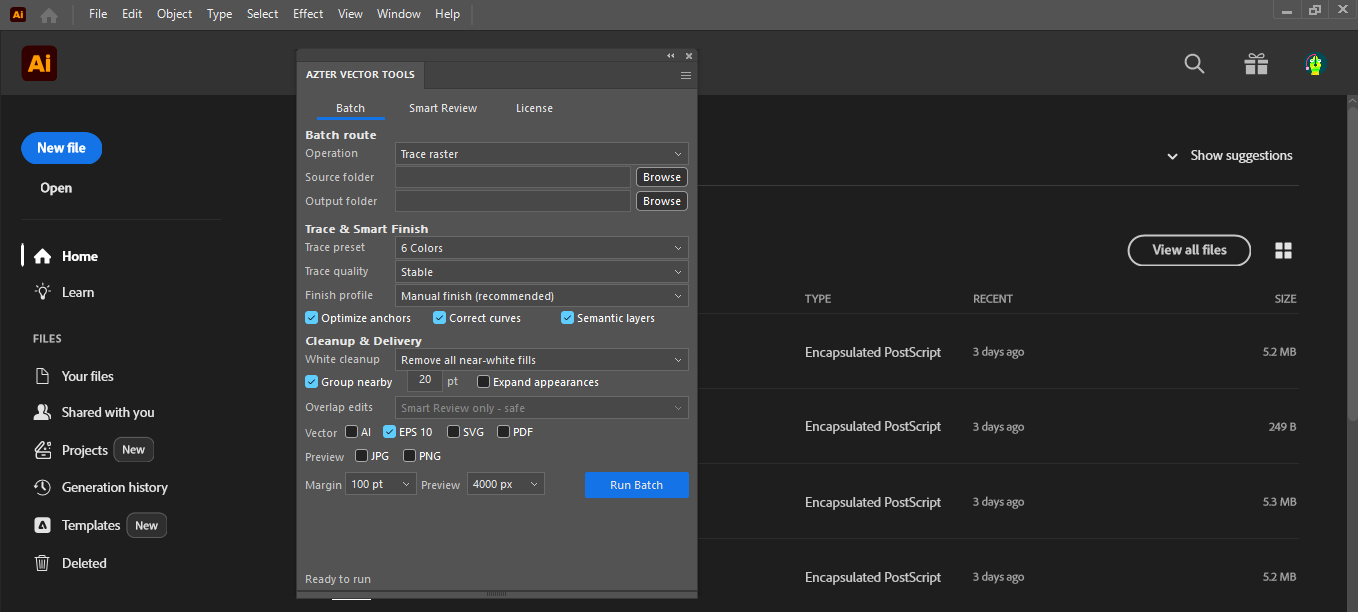
Batch workflow in AZTER
Start the batch after grouping the source files and defining the output.
- 01
Group AI, EPS, or SVG files with a similar background condition.
- 02
Choose Clean in AZTER and separate folders.
- 03
Select keep white, background/debris cleanup, or all near-white fills based on the test.
- 04
Run a small batch first.
- 05
Review highlights, holes, and pale colors before continuing.
FAQ
Frequently asked questions
Should I test every batch on a small set first?
Yes. Use representative files, including at least one difficult example, before applying one rule to a large folder.
Does AZTER change the source files?
No. AZTER uses separate source and output folders. If an output name already exists, AZTER adds a number. It replaces an existing file only when you enable Overwrite.
What happens if one file fails?
The failure is reported and ordinary per-file failures do not stop the rest of the batch. Review the completion summary and handle the exception separately.