
Before you begin
- The artboard defines a primary output area but does not automatically delete outside objects.
- Outside objects can affect file size, selection, bounds, and later export workflows.
- Partially intersecting artwork needs a different decision from fully outside artwork.
- Clipping and masks deserve inspection before deletion.
A safe manual check
Manual processing suits a small set or a rule that has not been tested yet.
- Switch between preview and outline views.
- Inspect layers, masks, guides, and objects beyond the artboard.
- Select clearly unused objects that are fully outside.
- Save a copy and verify the artwork and export bounds.
Quality checks before delivery
Open representative outputs and review the actual vector or raster file at the size and in the application that matters.
- Clipping masks and hidden construction elements
- Objects touching or crossing the artboard edge
- Export bounds
- Layer and grouping structure
Troubleshooting
Keep the source unchanged while you diagnose a failed file. Other files in the batch can continue.
- If needed artwork disappears, restore the source and handle that file manually.
- If objects remain, check whether they cross the artboard edge. The cleanup removes only objects that sit fully outside it.
- Split mixed-origin files into separate review groups.
Workflow
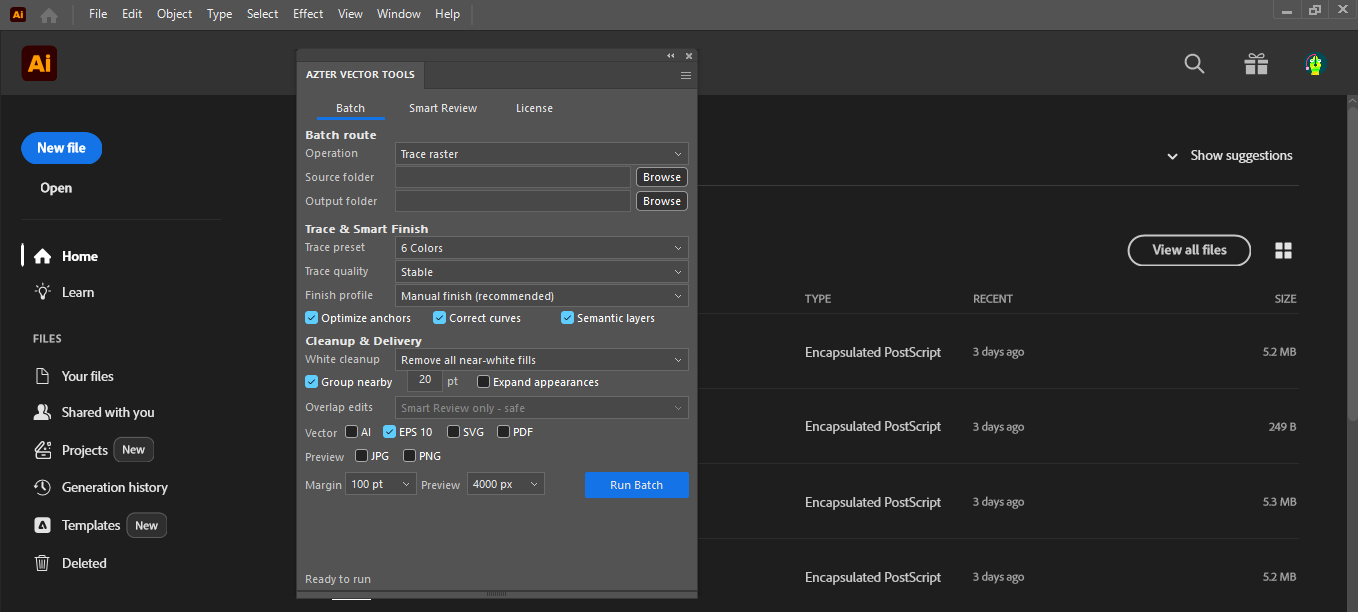
Batch workflow in AZTER
Start the batch after grouping the source files and defining the output.
- 01
Group files created by the same workflow.
- 02
Test one file and verify which outside objects are disposable.
- 03
Choose Clean in AZTER and enable removal of objects fully outside the active artboard.
- 04
Write results to a separate folder.
- 05
Review masks, bounds, and a representative export.
FAQ
Frequently asked questions
Should I test every batch on a small set first?
Yes. Use representative files, including at least one difficult example, before applying one rule to a large folder.
Does AZTER change the source files?
No. AZTER uses separate source and output folders. If an output name already exists, AZTER adds a number. It replaces an existing file only when you enable Overwrite.
What happens if one file fails?
The failure is reported and ordinary per-file failures do not stop the rest of the batch. Review the completion summary and handle the exception separately.