
Before you begin
- Raster transparency is stored in the source image; a JPEG cannot carry it.
- Tracing can create white vector shapes even when you want no background.
- White may also be part of the intended illustration.
- Transparent PNG is a preview/output choice, not proof that the vector contains no white shapes.
Diagnose one file first
Manual processing suits a small set or a rule that has not been tested yet.
- Place the source over a contrasting background to see whether raster transparency exists.
- Run Image Trace and expand the result.
- Inspect white shapes in the Layers panel or by selecting them on the artboard.
- Remove only background/debris shapes, then verify that intentional white details remain.
Quality checks before delivery
Open representative outputs and review the actual vector or raster file at the size and in the application that matters.
- Look for halos along traced edges.
- Check light-colored artwork that could be mistaken for background.
- Confirm transparency in the PNG itself and cleanliness in the editable vector separately.
- Keep a copy of the raster source for comparison.
Troubleshooting
Keep the source unchanged while you diagnose a failed file. Other files in the batch can continue.
- If white details vanish, use a less aggressive cleanup policy.
- If a halo remains, improve the source image or adjust the trace preset before cleanup.
- If the PNG still has a solid background, confirm PNG and transparency are both selected for preview output.
Workflow
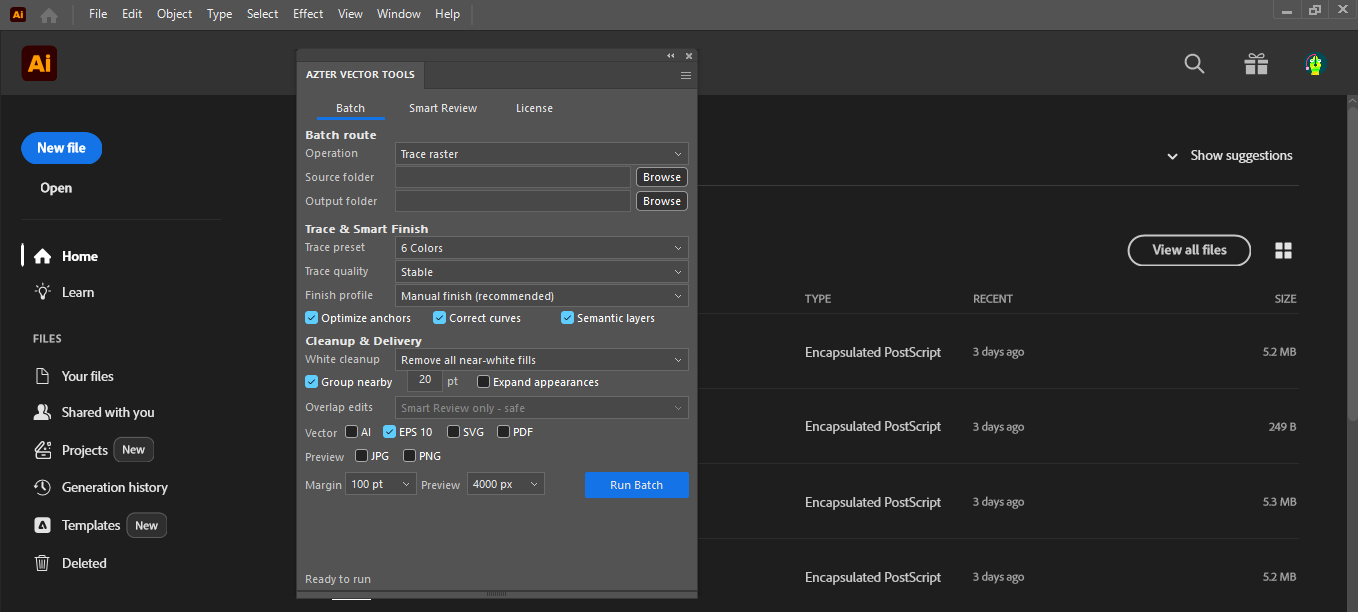
Batch workflow in AZTER
Start the batch after grouping the source files and defining the output.
- 01
Group source images with the same background condition.
- 02
Run a one-file Trace test using the intended preset.
- 03
Choose the appropriate near-white cleanup policy in AZTER. Intentional white fills must remain.
- 04
Save vector output to a separate folder and generate transparent PNG previews only if needed.
- 05
Review edges and intentional white elements on contrasting backgrounds.
FAQ
Frequently asked questions
Should I test every batch on a small set first?
Yes. Use representative files, including at least one difficult example, before applying one rule to a large folder.
Does AZTER change the source files?
No. AZTER uses separate source and output folders. If an output name already exists, AZTER adds a number. It replaces an existing file only when you enable Overwrite.
What happens if one file fails?
The failure is reported and ordinary per-file failures do not stop the rest of the batch. Review the completion summary and handle the exception separately.