
Before you begin
- PNG can preserve transparency; JPG cannot.
- Resolution, compression artifacts, contrast, and background all affect tracing.
- Flat-color illustrations and photographs should not share one preset by default.
- Editable vector output should be reviewed at path level, not judged only from a small preview.
Prepare source groups before tracing
Manual processing suits a small set or a rule that has not been tested yet.
- Remove broken or irrelevant files from the source set.
- Group images by subject style, color count, contrast, and background.
- Open one representative file from each group and test the trace result.
- Record the preset and cleanup choice for that group.
Quality checks before delivery
Open representative outputs and review the actual vector or raster file at the size and in the application that matters.
- Inspect corners, fine gaps, and small isolated shapes.
- Watch for JPG compression blocks turning into unwanted paths.
- Check transparent PNG edges over a contrasting background.
- Confirm output files open and remain editable.
Troubleshooting
Keep the source unchanged while you diagnose a failed file. Other files in the batch can continue.
- For noisy JPGs, improve or clean the raster before tracing.
- For missing small details, test a profile intended for more detail.
- For overly complex paths, choose a source group and preset that better match each other.
Workflow
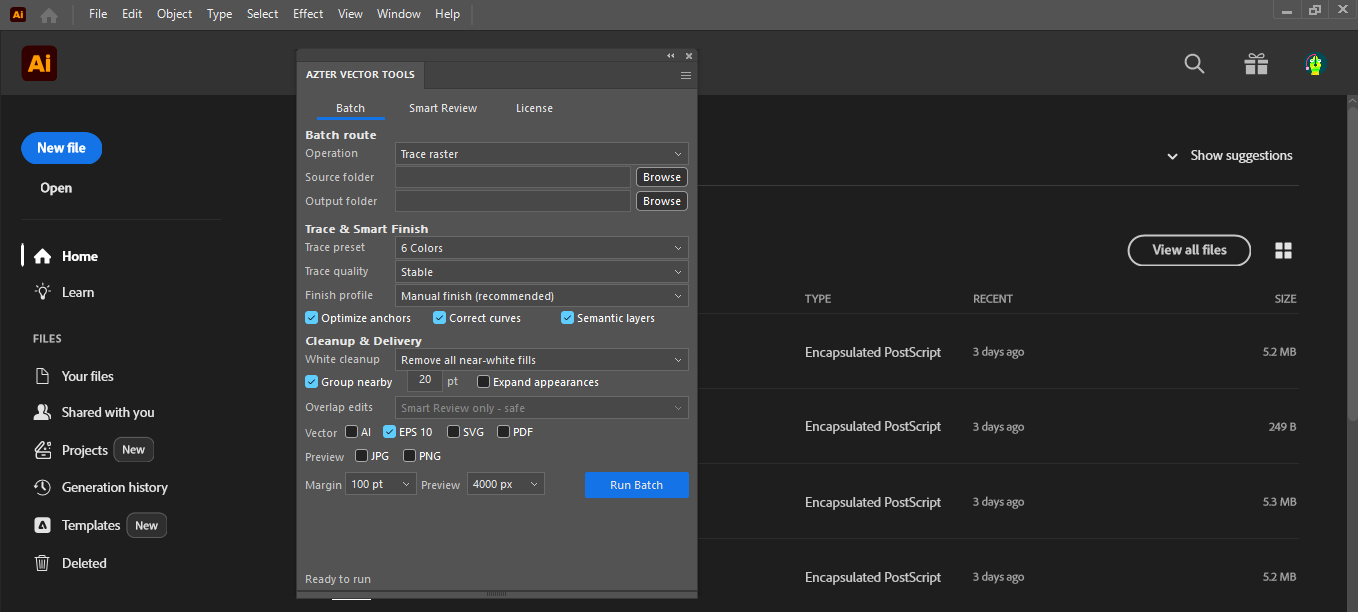
Batch workflow in AZTER
Start the batch after grouping the source files and defining the output.
- 01
Create one source folder per visual group.
- 02
Choose Trace in AZTER and a separate output folder.
- 03
Set the tested Illustrator preset and quality profile.
- 04
Choose AI, EPS, or SVG output and optional JPG/PNG previews.
- 05
Run each group as its own batch and review sample results.
FAQ
Frequently asked questions
Should I test every batch on a small set first?
Yes. Use representative files, including at least one difficult example, before applying one rule to a large folder.
Does AZTER change the source files?
No. AZTER uses separate source and output folders. If an output name already exists, AZTER adds a number. It replaces an existing file only when you enable Overwrite.
What happens if one file fails?
The failure is reported and ordinary per-file failures do not stop the rest of the batch. Review the completion summary and handle the exception separately.