
Before you begin
- Artwork scale changes vector geometry.
- Artboard resize changes the canvas boundary.
- Preview resize changes raster output dimensions.
- Stroke and small-detail appearance should be checked after significant scaling.
Choose the correct kind of resize
Manual processing suits a small set or a rule that has not been tested yet.
- Inspect the relationship between artwork and artboard.
- Measure the artwork itself instead of relying on the document window.
- Scale a representative file proportionally around its center.
- Refit the artboard and check strokes before repeating the rule.
Quality checks before delivery
Open representative outputs and review the actual vector or raster file at the size and in the application that matters.
- Final artwork width/height
- Stroke behavior
- Artboard bounds
- Small details at the target size
Troubleshooting
Keep the source unchanged while you diagnose a failed file. Other files in the batch can continue.
- If only the artboard should change, do not use artwork Scale.
- If strokes look too heavy or light, review the intended stroke-scaling behavior.
- If files need multiple target sizes, split them into separate batches.
Workflow
Batch workflow in AZTER
Start the batch after grouping the source files and defining the output.
- 01
Group AI, EPS, or SVG files that need one size rule.
- 02
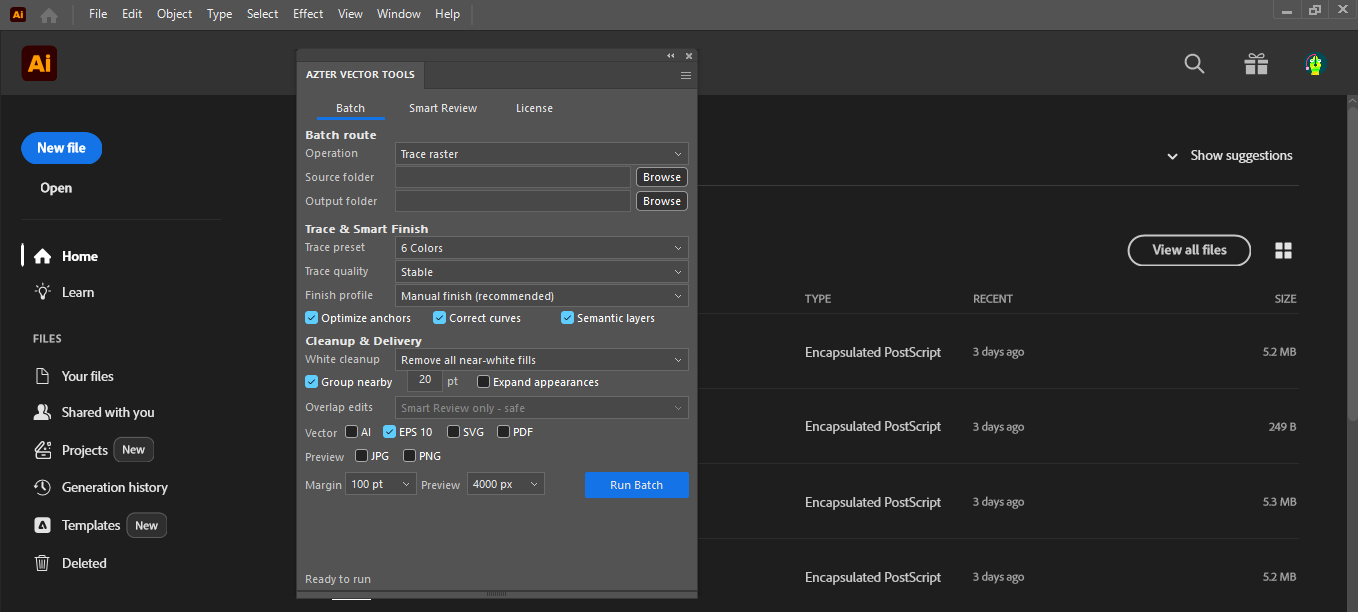
Choose Scale in AZTER and use separate source and output folders.
- 03
Set the proportional scaling rule and output formats.
- 04
Run the batch.
- 05
Verify dimensions, stroke appearance, and artboard fit on sample outputs.
FAQ
Frequently asked questions
Should I test every batch on a small set first?
Yes. Use representative files, including at least one difficult example, before applying one rule to a large folder.
Does AZTER change the source files?
No. AZTER uses separate source and output folders. If an output name already exists, AZTER adds a number. It replaces an existing file only when you enable Overwrite.
What happens if one file fails?
The failure is reported and ordinary per-file failures do not stop the rest of the batch. Review the completion summary and handle the exception separately.