
Before you begin
- Volume magnifies inconsistent inputs and vague rules.
- A small test batch exposes problems before they spread.
- Safe naming prevents silent replacement of existing output.
- Failures should be isolated and reviewed, not hidden.
Preflight checklist
Manual processing suits a small set or a rule that has not been tested yet.
- Make a read-only master copy or otherwise protect the source set.
- Remove unsupported, corrupt, and unrelated files.
- Group by host application, source format, operation, and output rule.
- Write down size, format, background, and naming requirements.
- Choose representative samples, including difficult edge cases.
Quality checks before delivery
Open representative outputs and review the actual vector or raster file at the size and in the application that matters.
- Expected file count
- Output naming collisions
- Representative visual quality
- Failed or skipped files
Troubleshooting
Keep the source unchanged while you diagnose a failed file. Other files in the batch can continue.
- If many files fail differently, the source group is probably too mixed.
- If outputs overwrite earlier work, restore from masters and fix the destination/naming rule.
- If review becomes the bottleneck, define smaller, objective acceptance checks instead of skipping review.
Workflow
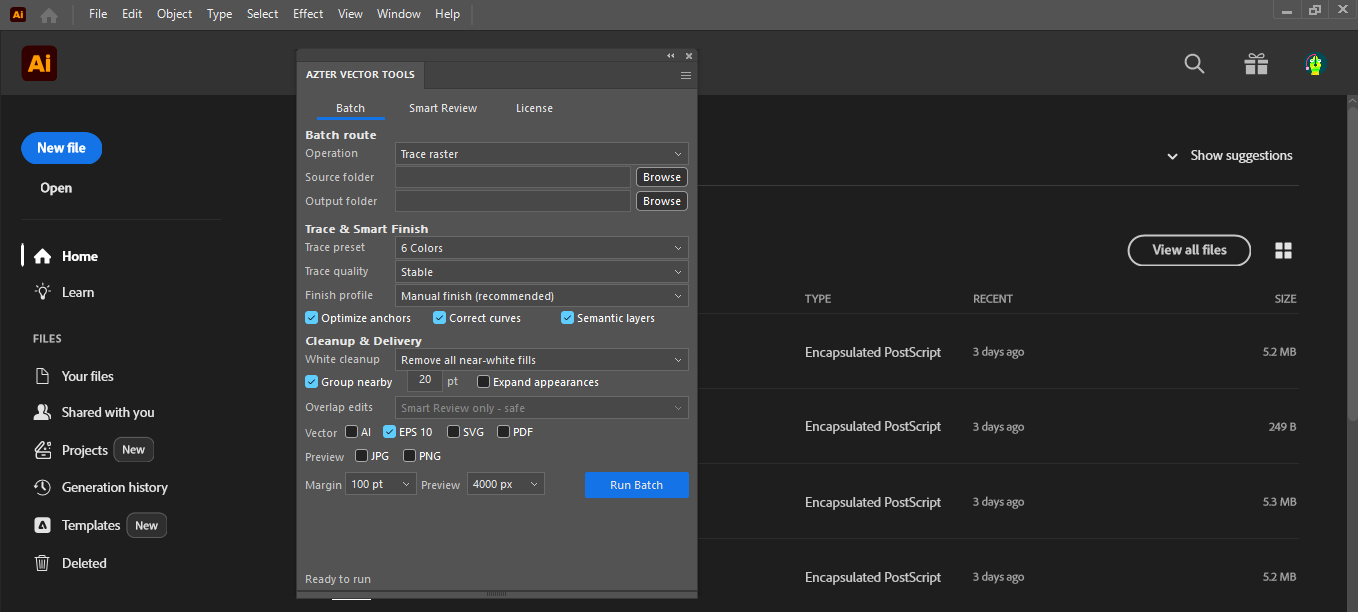
Batch workflow in AZTER
Start the batch after grouping the source files and defining the output.
- 01
Run the representative sample first.
- 02
Review editable vector output and raster previews separately.
- 03
Correct the rule or split the input group if results vary.
- 04
Run the larger batch to a clean output folder.
- 05
Use the completion summary to move failed files into manual review.
FAQ
Frequently asked questions
Should I test every batch on a small set first?
Yes. Use representative files, including at least one difficult example, before applying one rule to a large folder.
Does AZTER change the source files?
No. AZTER uses separate source and output folders. If an output name already exists, AZTER adds a number. It replaces an existing file only when you enable Overwrite.
What happens if one file fails?
The failure is reported and ordinary per-file failures do not stop the rest of the batch. Review the completion summary and handle the exception separately.