
Before you begin
- Actions are approachable for recorded command sequences.
- Scripts can add conditions and custom logic but require technical maintenance.
- Dedicated tools narrow the problem into supported, tested workflows.
- No automation method removes the need to inspect representative output.
Questions to ask before automating
Manual processing suits a small set or a rule that has not been tested yet.
- Is every file expected to follow the same command sequence?
- Does the workflow need conditions based on document content?
- Who will update the workflow after Illustrator changes?
- How will failures, output naming, and source-file safety be reported?
Quality checks before delivery
Open representative outputs and review the actual vector or raster file at the size and in the application that matters.
- Repeatability across representative files
- Source and output safety
- Failure visibility
- Maintenance ownership
Troubleshooting
Keep the source unchanged while you diagnose a failed file. Other files in the batch can continue.
- If an Action stops at dialogs, simplify the sequence or choose a tool built for that task.
- If a script becomes business-critical, document its owner and supported versions.
- If source files vary greatly, improve input grouping before changing automation technology.
Workflow
Batch workflow in AZTER
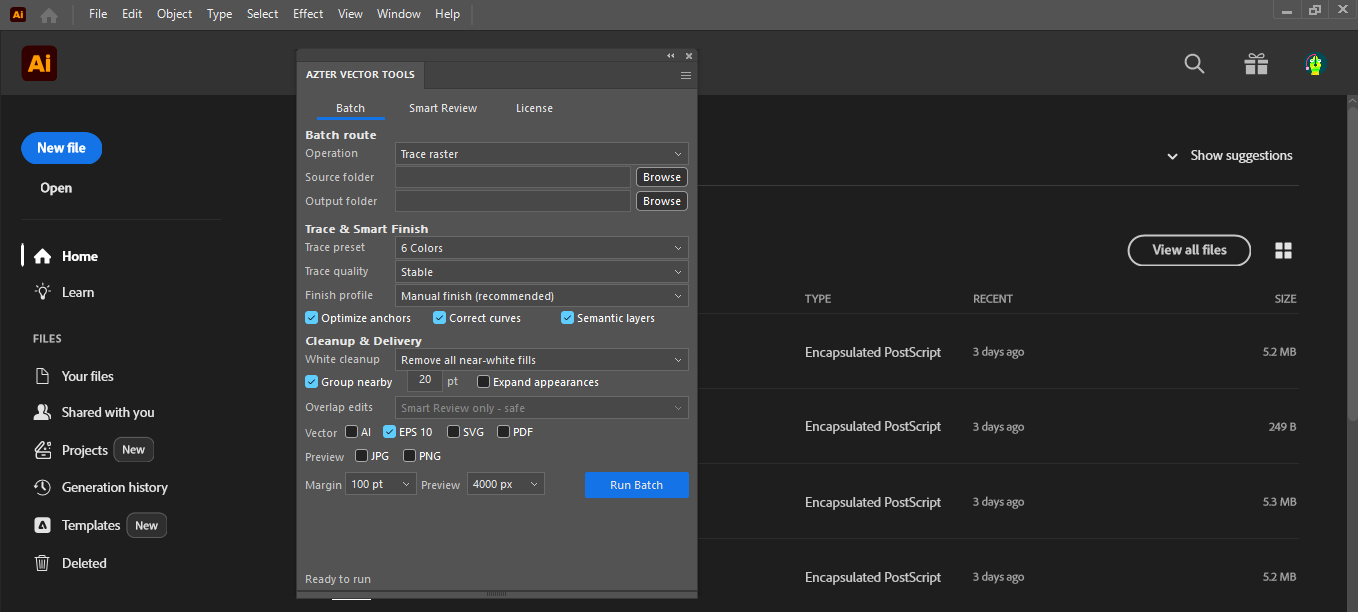
Start the batch after grouping the source files and defining the output.
- 01
Write a short specification covering the input, operation, and output.
- 02
Test whether an Action can reproduce it on varied samples.
- 03
Choose a maintained script only when custom logic is necessary.
- 04
Choose AZTER when the task maps to Trace, Clean, Preview, Scale, conversion, or Smart Review.
- 05
Keep a manual review checkpoint regardless of method.
Actions, scripts, and dedicated batch tools
| Factor | Actions / scripts | Dedicated batch tool |
|---|---|---|
| Best fit | Custom sequences or logic | Supported recurring jobs |
| Setup | Record or develop | Choose visible job settings |
| Maintenance | Owned by the workflow author | Delivered with the product |
| Flexibility | Potentially broad | Intentionally bounded |
| Review | Must be designed into the workflow | Summary plus output inspection |
FAQ
Frequently asked questions
Should I test every batch on a small set first?
Yes. Use representative files, including at least one difficult example, before applying one rule to a large folder.
Does AZTER change the source files?
No. AZTER uses separate source and output folders. If an output name already exists, AZTER adds a number. It replaces an existing file only when you enable Overwrite.
What happens if one file fails?
The failure is reported and ordinary per-file failures do not stop the rest of the batch. Review the completion summary and handle the exception separately.