What the job does
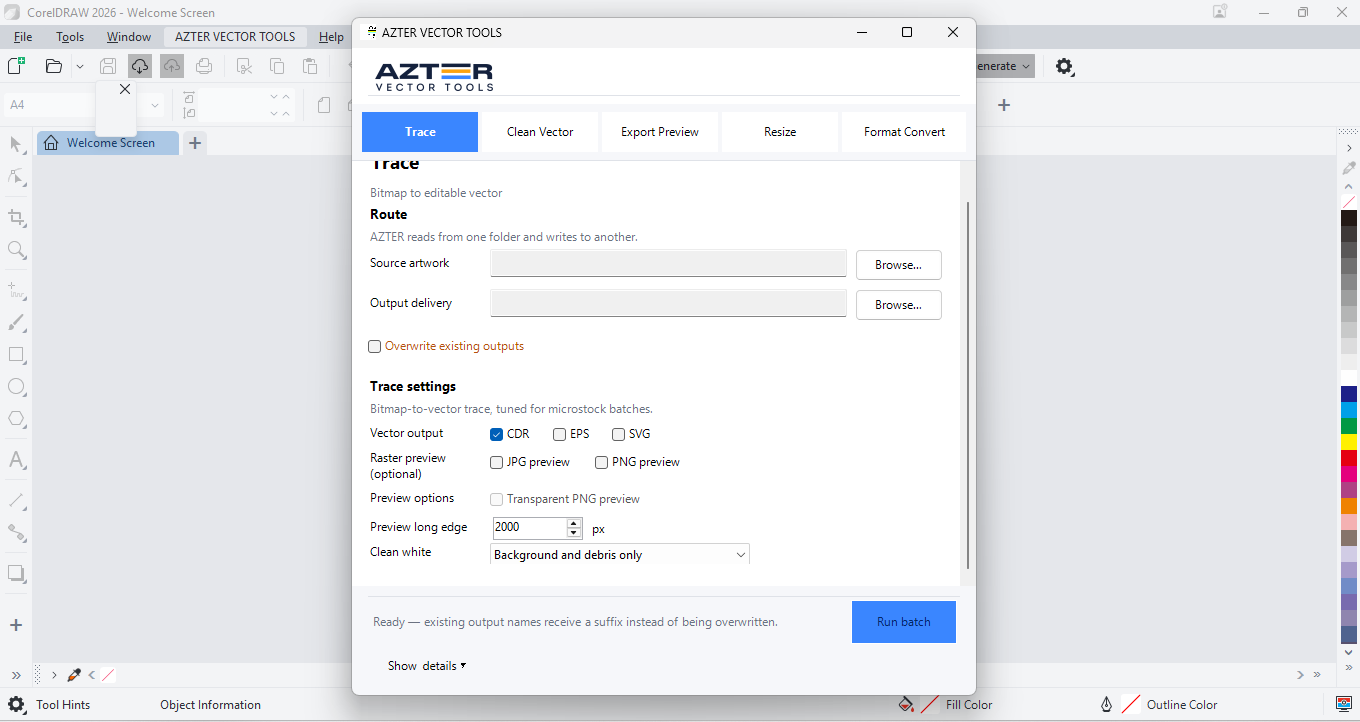
AZTER opens each compatible file and exports JPG and/or PNG using either a target long-edge size or DPI-derived scale while preserving the source basename unless sequential naming is selected.
Source files, output, and settings
Source files: CDR, EPS, SVG, and PDF vector files.
Output: JPG and/or PNG previews, with transparency available when PNG is selected.
- JPG, PNG, or both
- Long-edge pixels or DPI-derived scale
- Transparent PNG
- Original or sequential naming
Jobs that fit this workflow
Group files that need the same production rule. The output will be easier to review, and you can repeat the job with the same settings.
- Catalog thumbnails
- Marketplace previews
- Fast visual review of a converted CDR folder
Checks before a larger batch
A batch handles repeatable steps. Visual choices still need review.
- JPG output does not support transparency.
- A raster preview cannot confirm editability of the vector source.
- Different output sizes should use separate runs.
Workflow
Run a batch in four steps
- 01
Collect vectors that need one preview specification.
- 02
Choose the raster formats and output size.
- 03
Enable transparent PNG when required.
- 04
Export the batch and check scale, edges, and background.
FAQ
Frequently asked questions
Which CorelDRAW versions are supported?
CorelDRAW X7, X8, 2017–2026 on 64-bit Windows.
Will AZTER overwrite source files?
No. You choose separate source and output folders. If an output name already exists, AZTER adds a number. It replaces an existing file only when you turn on Overwrite.
Can I try it before purchasing?
Yes. The trial covers up to 10 source files and requires an internet connection. Purchase and activation take place from the License screen in the app.
How many devices does one license cover?
One license covers two Windows devices for either CorelDRAW or Illustrator. The editions are sold separately.