
Before you begin
- Group sources by visual style and quality.
- Test one representative file before processing the folder.
- Editable curves, page fit, vector format, and preview size are separate output decisions.
- Keep raster sources unchanged for comparison and recovery.
A repeatable CorelDRAW trace process
Manual processing suits a small set or a rule that has not been tested yet.
- Import one raster image into a working document.
- Run the standard trace and inspect the result.
- Convert the result to editable curves and remove obvious debris.
- Scale and fit the page according to the delivery rule, then save a copy.
Quality checks before delivery
Open representative outputs and review the actual vector or raster file at the size and in the application that matters.
- Curve accuracy and unwanted small shapes
- Artwork scale and page fit
- Preview dimensions
- EPS or SVG behavior in the receiving workflow
Troubleshooting
Keep the source unchanged while you diagnose a failed file. Other files in the batch can continue.
- If source quality varies, split the folder into more consistent groups.
- If one file fails, verify that CorelDRAW can import it and read the AZTER summary.
- If a vector format behaves differently downstream, keep the source unchanged and adjust the delivery workflow.
Workflow
Batch workflow in AZTER
Start the batch after grouping the source files and defining the output.
- 01
Put BMP, JPG, PNG, or TIFF images in one source folder.
- 02
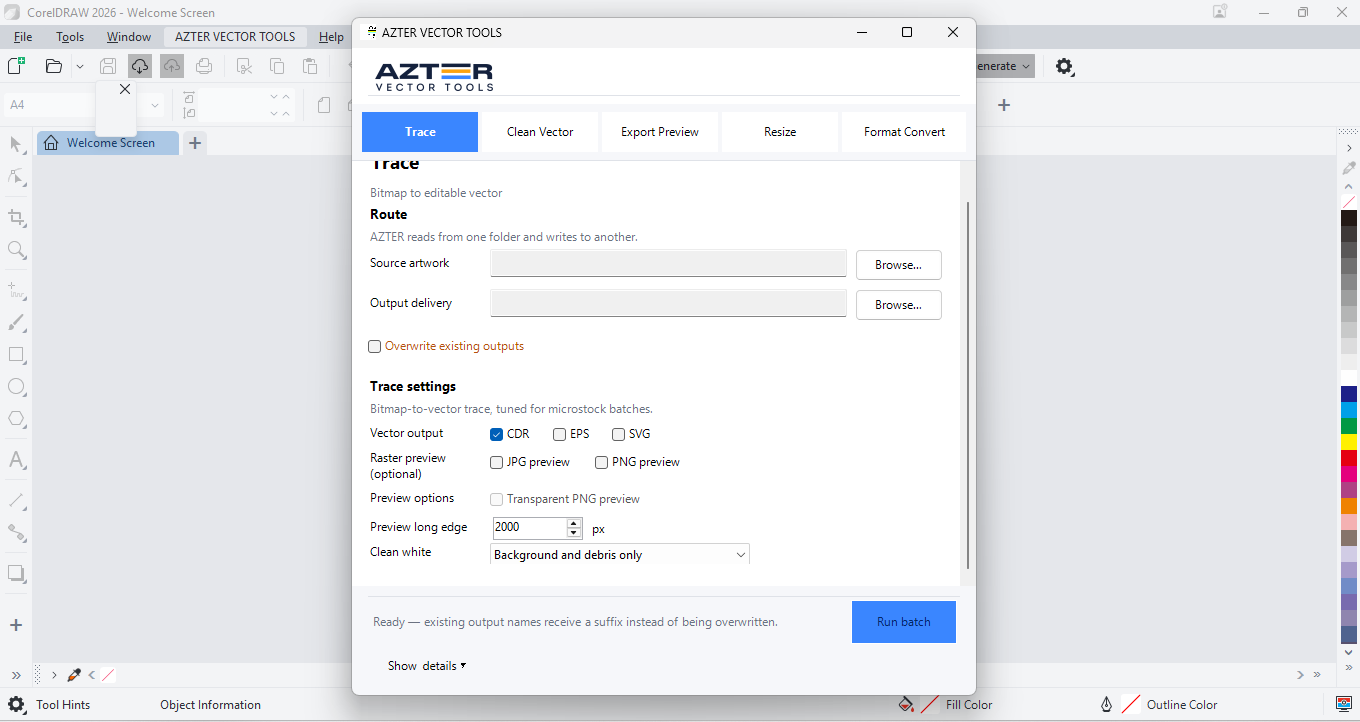
Choose Trace in AZTER and a different output folder.
- 03
Choose CDR, EPS, or SVG output and optional JPG/PNG previews.
- 04
Set vector and preview dimensions as required.
- 05
Run the batch and inspect curves plus the completion summary.
FAQ
Frequently asked questions
Should I test every batch on a small set first?
Yes. Use representative files, including at least one difficult example, before applying one rule to a large folder.
Does AZTER change the source files?
No. AZTER uses separate source and output folders. If an output name already exists, AZTER adds a number. It replaces an existing file only when you enable Overwrite.
What happens if one file fails?
The failure is reported and ordinary per-file failures do not stop the rest of the batch. Review the completion summary and handle the exception separately.